Inklaim Features Simplification

Simplifying figures

Simplify patent drawings: remove holes, fillets, dimensions and title blocks

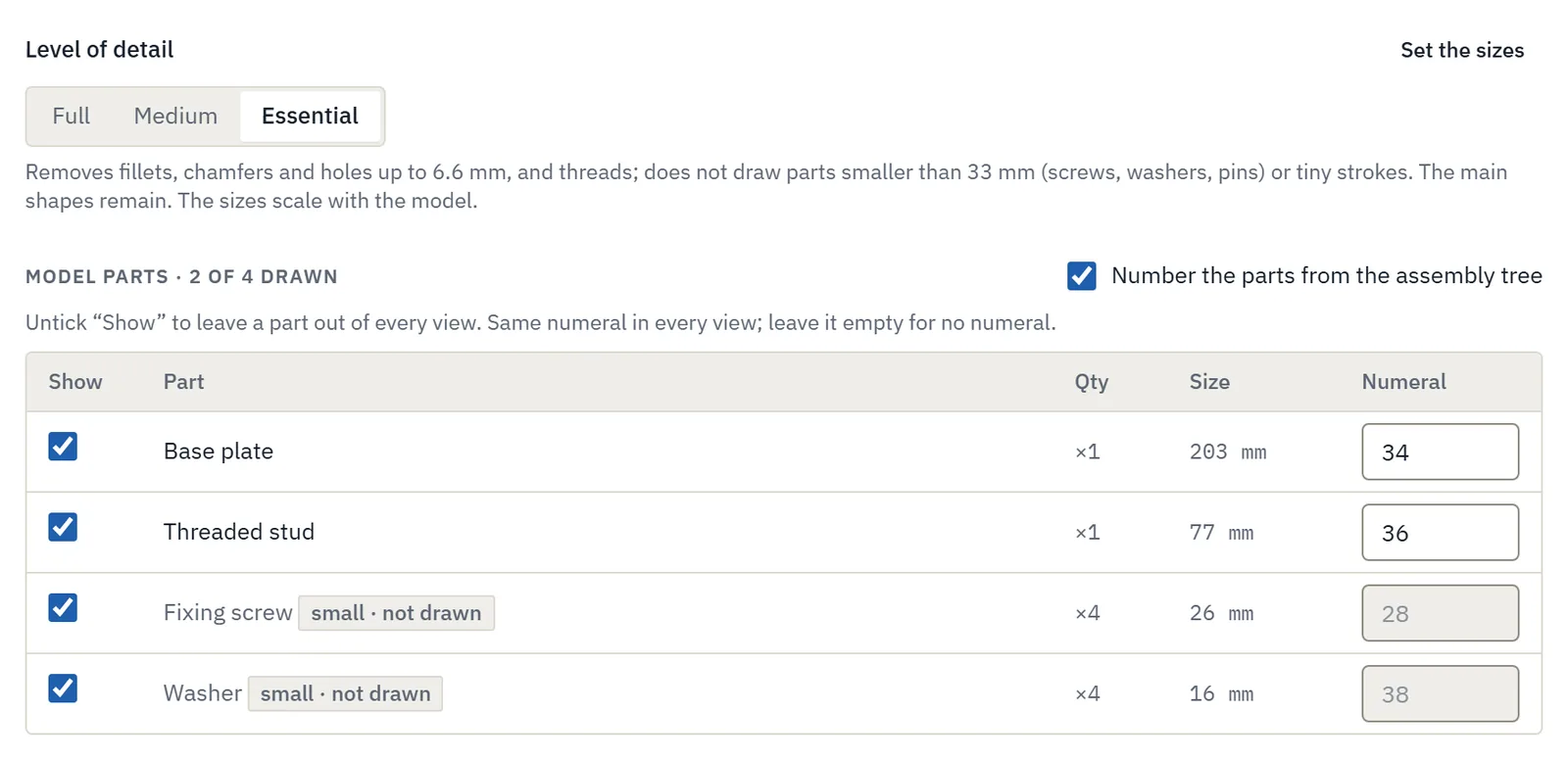
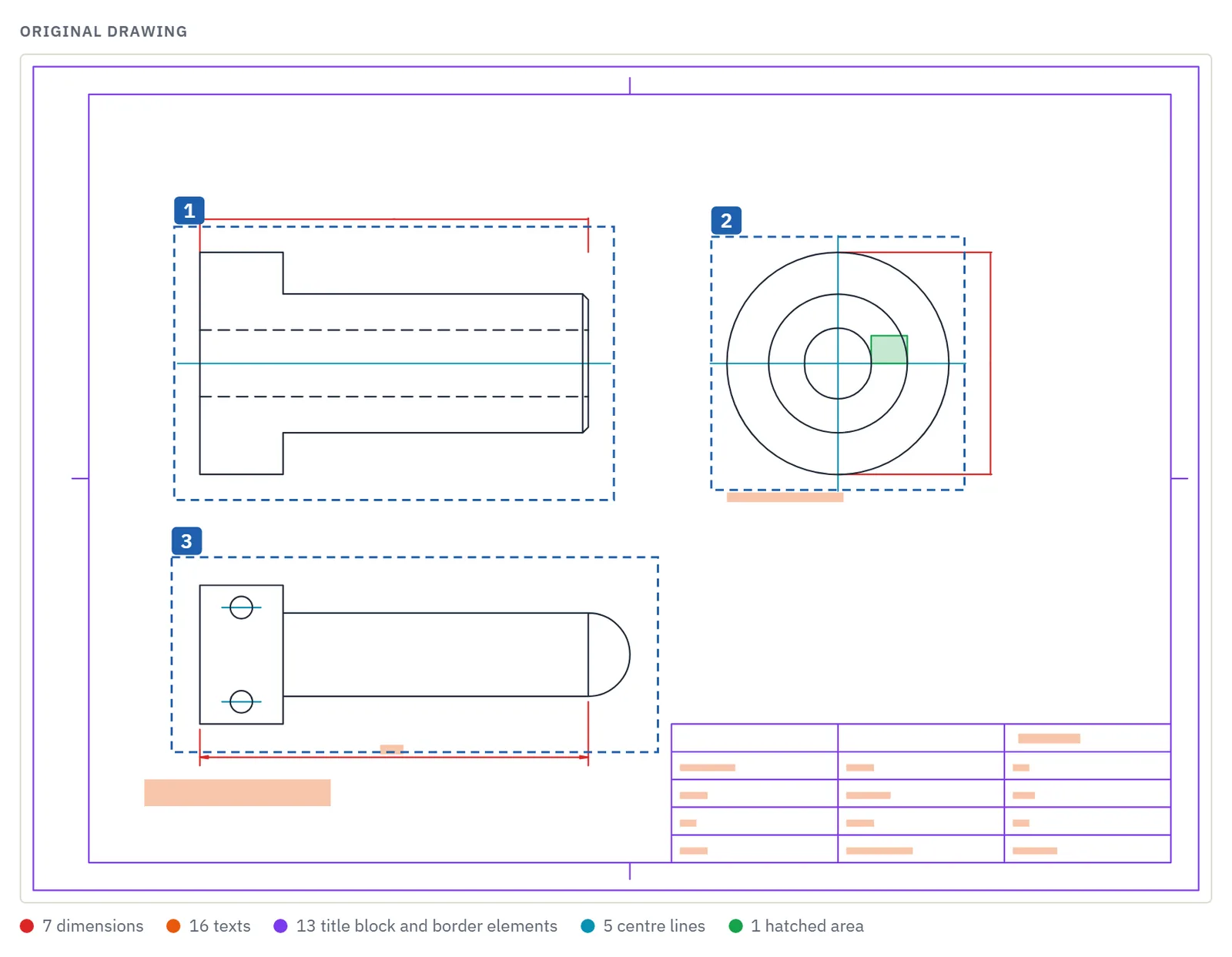
Inklaim simplifies patent figures in two ways. On the 3D model you choose the level of detail, and small holes, chamfers, fillets and threads, screws and washers disappear. From a DXF or vector PDF it removes dimensions, texts, title block, frame, center lines and hatching. Before confirming, you see in color what will be removed.

Full, Medium, EssentialDXFVector PDFBefore and after preview

In brief

A patent figure is not a workshop drawing

Inklaim is web software from an Italian start-up founded in Turin that prepares draft patent drawings, checked against EPO, UIBM, USPTO, PCT, CNIPA and KIPO rules, from 3D CAD models (STEP/IGES), DXF or vector PDF files, photos of an object, sketches and claims.

The workshop drawing exists to manufacture the part: dimensions, title block, every hole and every fillet. The patent figure exists to explain the invention, and it must stay legible when reduced. Much of the draftsperson's work is taking things out.

How do you simplify a technical drawing for a patent? From the 3D model, choose the Full, Medium or Essential level of detail; from a DXF or vector PDF, the import removes dimensions, texts, title block, frame, center lines and hatching. Inklaim adds no lines, it only removes them, and shows you a preview before you confirm.

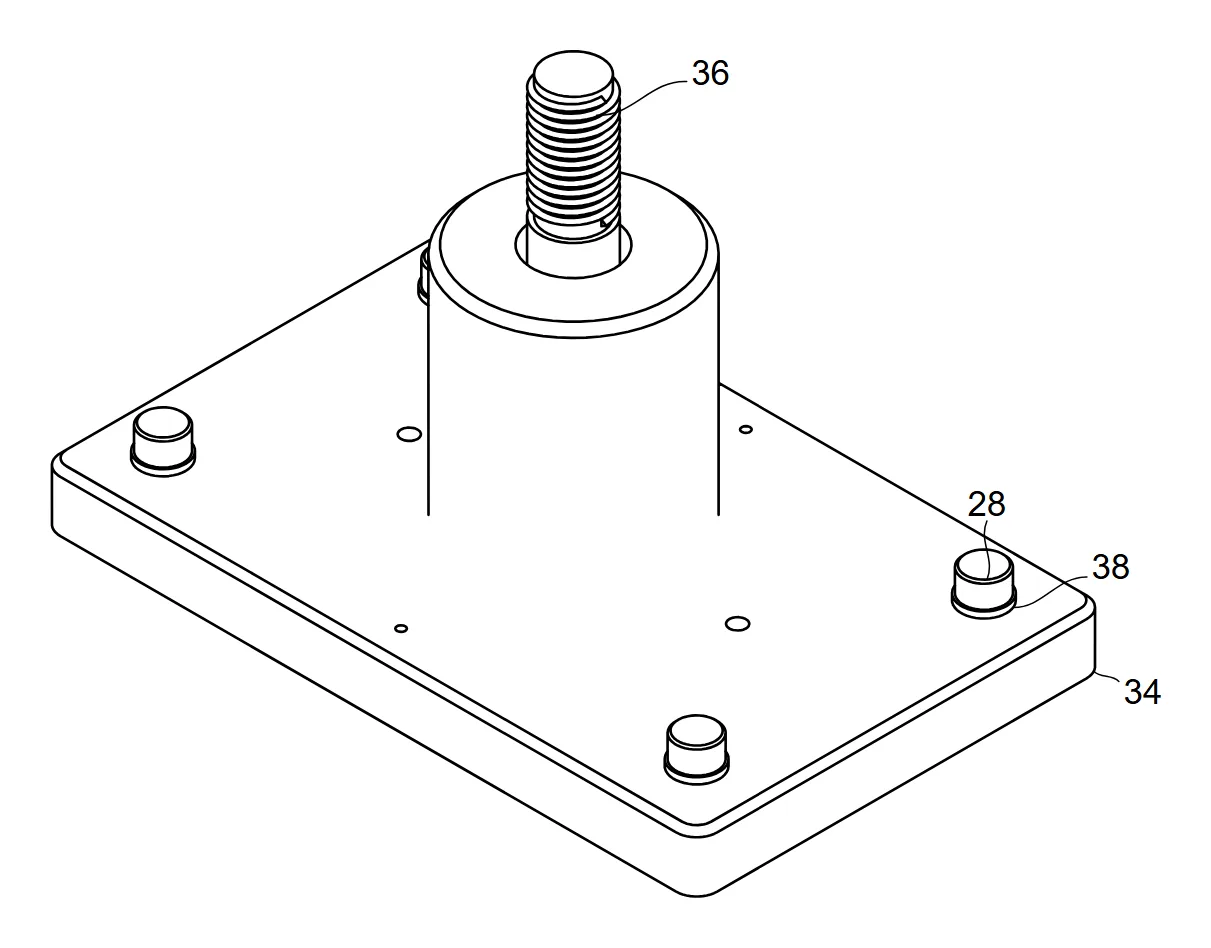
View of a bracket from the 3D model with full detail: holes, fillets, threads and screws
Before: the bracket at the Full level, with holes, fillets and screws.
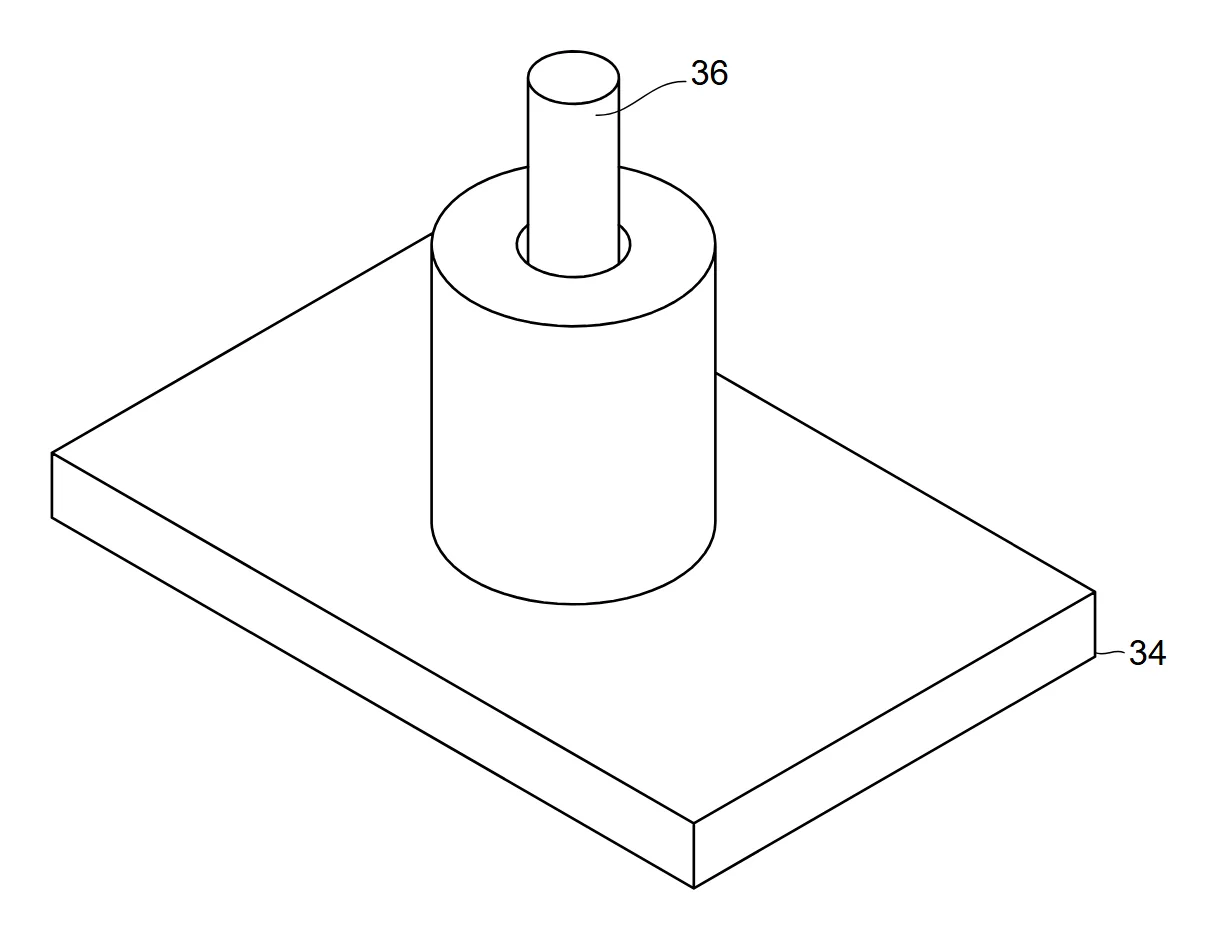
The same bracket simplified for the patent drawing: small holes, fillets and screws removed
After: the same view at the Essential level.

The rules

Why do patent figures need to be simplified?

Because office rules require figures that stay legible after reduction and carry no superfluous text. These are the rules that matter most when you start from a technical drawing.

RuleSourceWhat you remove from the figure
Every detail distinguishable after linear reduction to 2/3EPO, Art. 1(2)(c) OJ EPO 2025, A49; Rule 11.13 PCT; USPTO, 37 CFR 1.84(k)Small fillets, chamfers and threads, which turn into blots when reduced
No text, except a few indispensable keywordsEPO, Art. 1(2)(j) OJ EPO 2025, A49 and Guidelines A-IX, 8; Rule 11.11 PCTDimensions, notes, tolerances and title block text
Usable surface without framesEPO, Art. 1(1) OJ EPO 2025, A49; Rule 11.6(c) PCTFrame and title block of the workshop sheet
Views without projection lines or center linesUSPTO, 37 CFR 1.84(h)Axes and center lines
Hatching must not obscure the reference numeralsEPO, Art. 1(2)(b) OJ EPO 2025, A49Workshop hatching, to be redone only where needed
Sheets without legends, except those necessary and any scaleUIBM, Chamber of Commerce practice (Genoa CCIAA guide)Unnecessary text and indications

Sources: Decision of the President of the EPO dated 7 July 2025, OJ EPO 2025, A49, Guidelines for Examination, A-IX, 8, Rule 11 PCT, 37 CFR 1.84, Genoa Chamber of Commerce (CCIAA) guide (secondary source, in Italian). Learn more in the guide to European patent drawing requirements.

Updated October 2026

From the 3D model

The level of detail: Full, Medium, Essential

When you derive the views from a STEP or IGES file, you choose how much detail to keep. With Essential, small holes, chamfers, fillets and threads disappear, together with small fasteners such as screws and washers. The sizes below which a feature counts as small are adjustable.

  • The result tells you what was removed, for example “12 fillets, 4 holes removed”.
  • The views show sharp edges and outlines only, without tangent edge lines.
  • Each part can be shown or hidden in all views or only in some: remove the housing to show the inside.

The simplified views then go on the sheet at the same scale, as explained on the page about patent drawings from 3D CAD →

Level of detail of the 3D model for the patent drawing: Full, Medium, Essential, and choice of the parts to show
Level of detail and parts to show, in the 3D model wizard.

From DXF or PDF

Converting a DXF or PDF into a patent drawing

Import the technical drawing that the engineering department has already sent you. Inklaim recognizes and removes what does not belong in a patent figure.

DimensionsTexts and notesTitle blockFrameCenter linesHatching

Before confirming, you see the removed elements in color, with a count by type, and how each view will look. If something should have stayed, you see it straight away.

It works with DXF and vector PDF files. DWG files are first saved as DXF from the CAD program.

The geometry stays that of the original drawing: Inklaim does not redraw or correct it. The cleaned figures enter the matter like any other, with reference numerals and checks.

Importing a DXF or PDF technical drawing: dimensions, texts, title block, center lines and hatching to be removed shown in color
2D import: dimensions, texts and title block to be removed, shown in color.
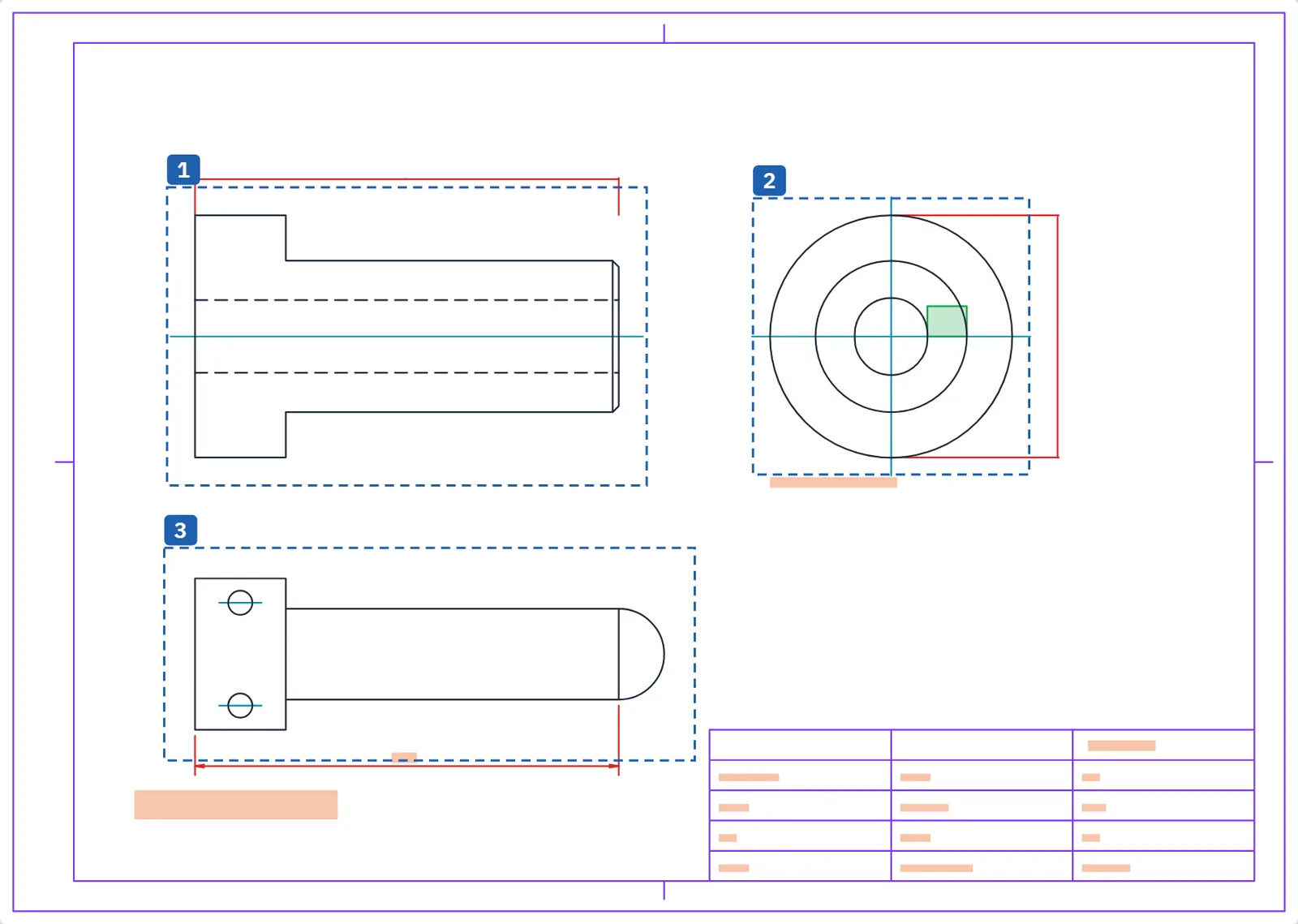
Original DXF technical drawing with dimensions, texts and title block
Before: the workshop drawing in DXF, with dimensions and title block.
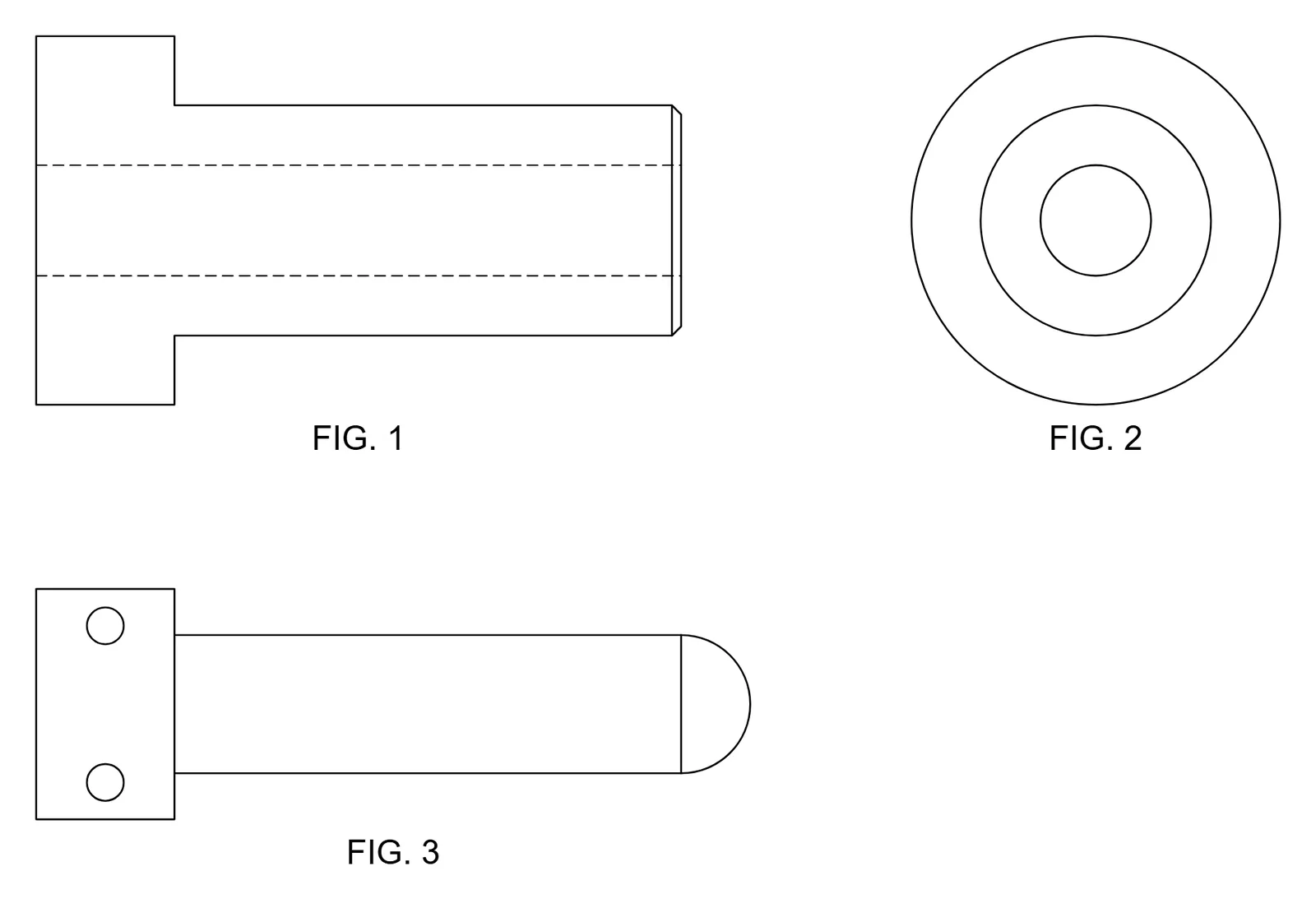
The same drawing turned into a patent figure: geometry only, without dimensions or title block
After: only the geometry remains, ready for the reference numerals.

Repeated objects

Hundreds of identical objects, selected in one click

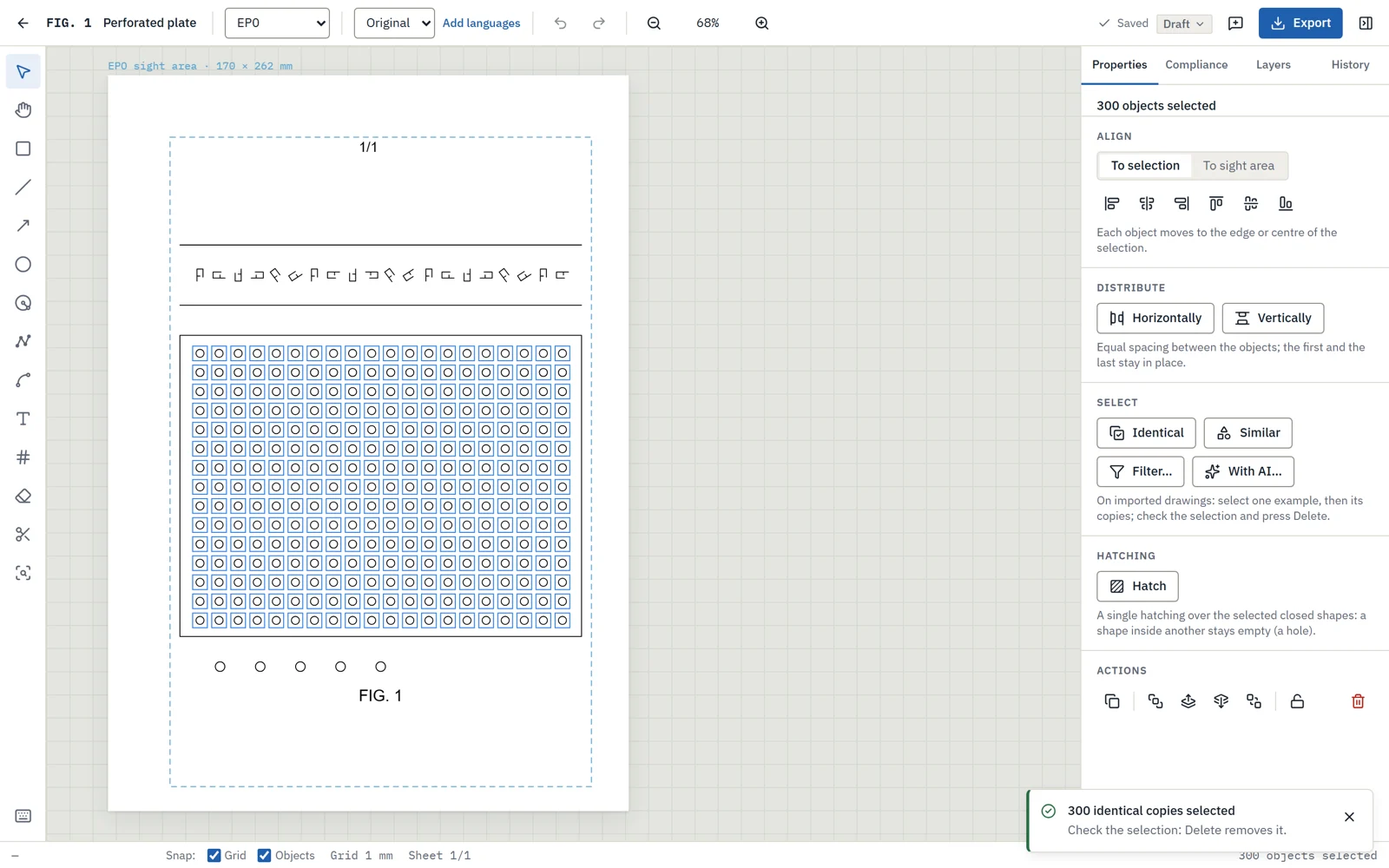
Client drawings often arrive with hundreds of objects the patent does not need: holes, washers, brackets, posts, drawn as loose lines, with no layers or blocks. Pick one example and Inklaim finds all the copies.

Editor with 300 identical holes selected in an imported DXF drawing using “Select identical”
“Select identical” on one hole: the 300 identical copies, not the 5 larger holes.
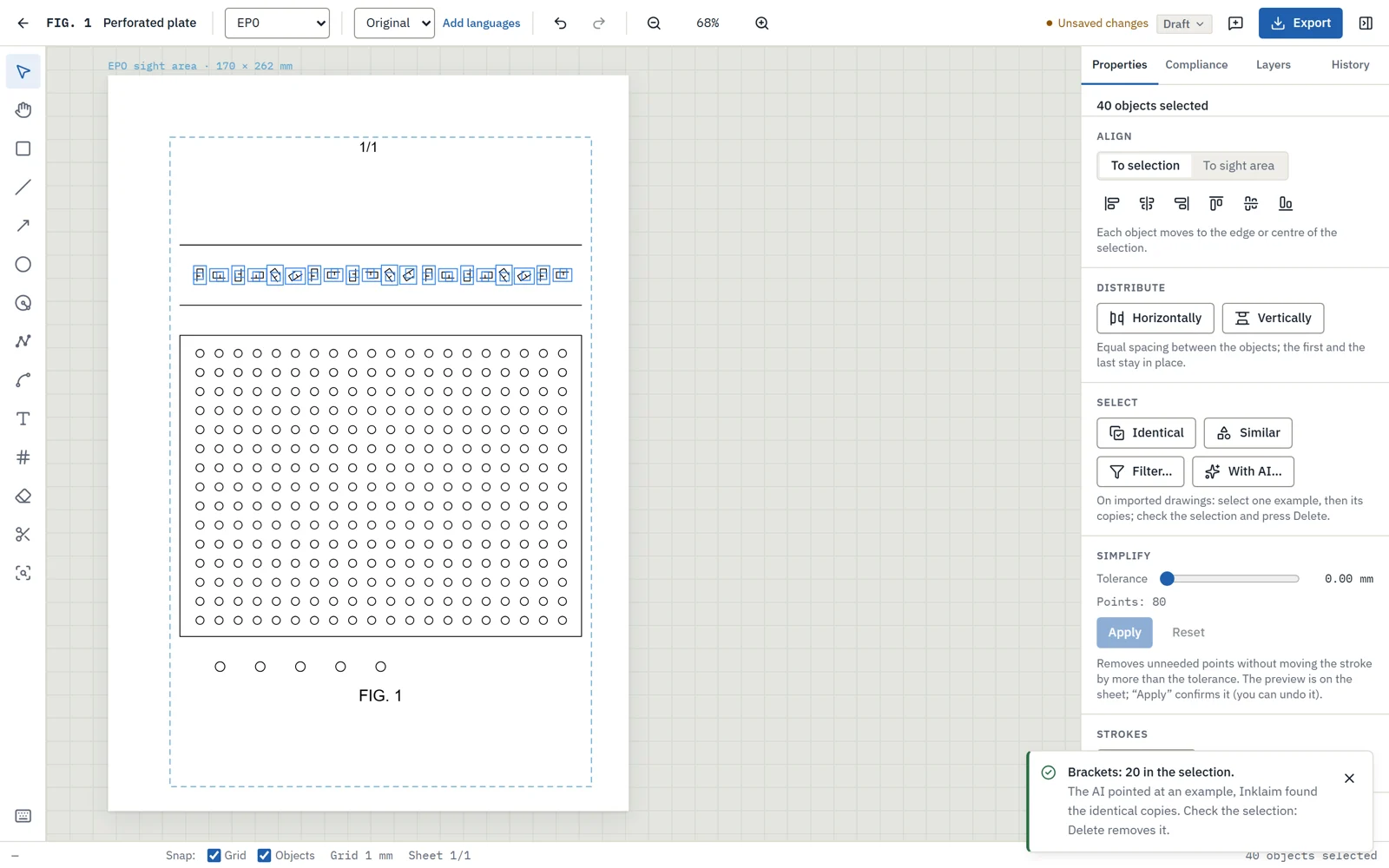
Editor with the 20 brackets along the rail selected using “Select with AI”
“Select with AI”: “all the brackets along the rail”, 20 found (sample AI answer).

Select identical

From the example, every copy in the figure, even rotated or mirrored, at the same size. Then Delete removes them.

Similar and by filter

“Select similar” for near-identical shapes; “Select by filter” by type, size on the sheet and in the drawing, and area.

With AI, if it is on

Type what to select: the AI points at an example or a filter, and the editor finds the copies. Nothing is deleted without you.

In the editor

The final touches by hand, with the right tools

Whatever automatic simplification cannot decide on its own, you refine in the figure editor, in millimeters.

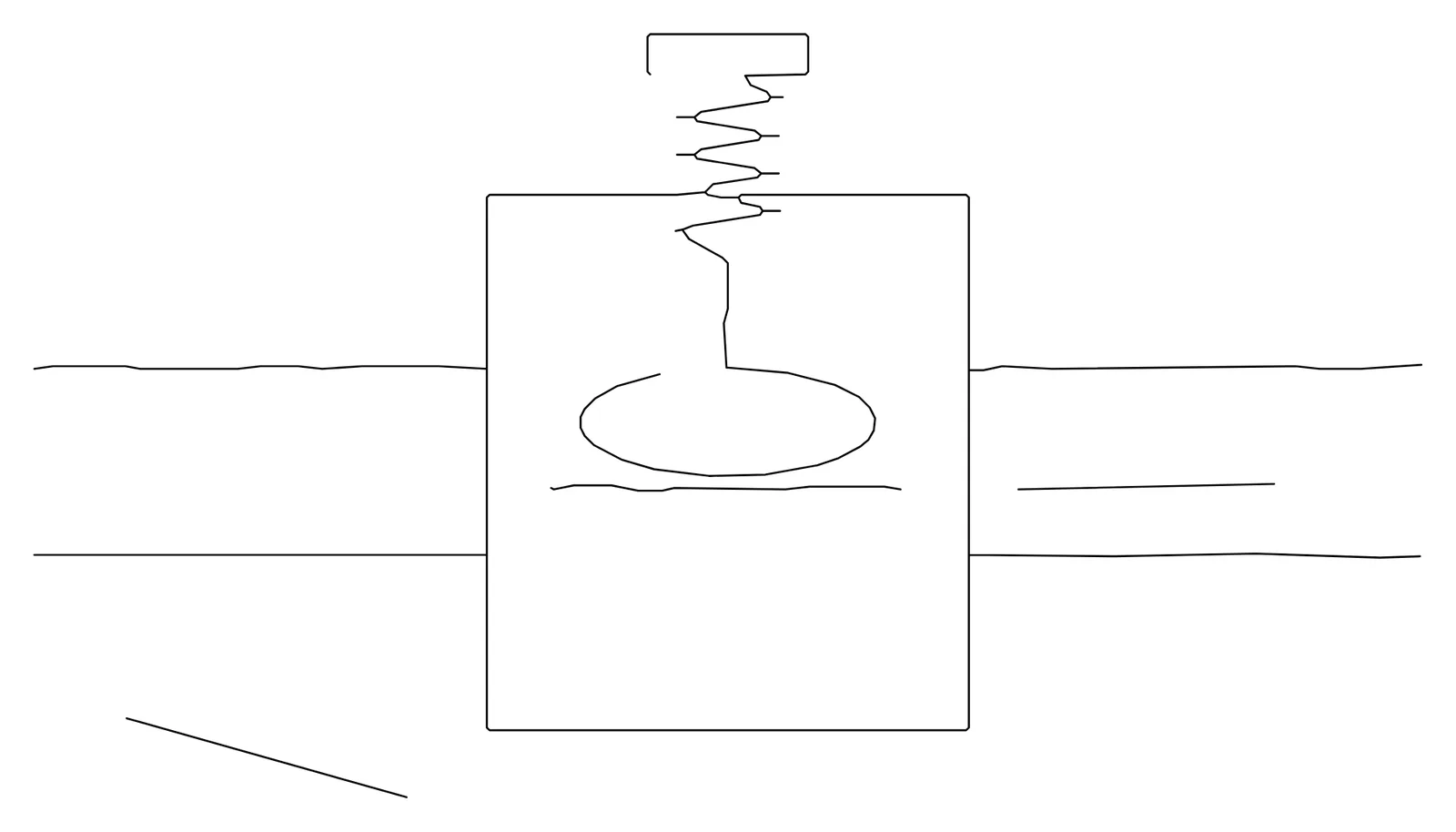
Traced sketch with two stray marks, before using the eraser
Before: a traced path with two stray marks.
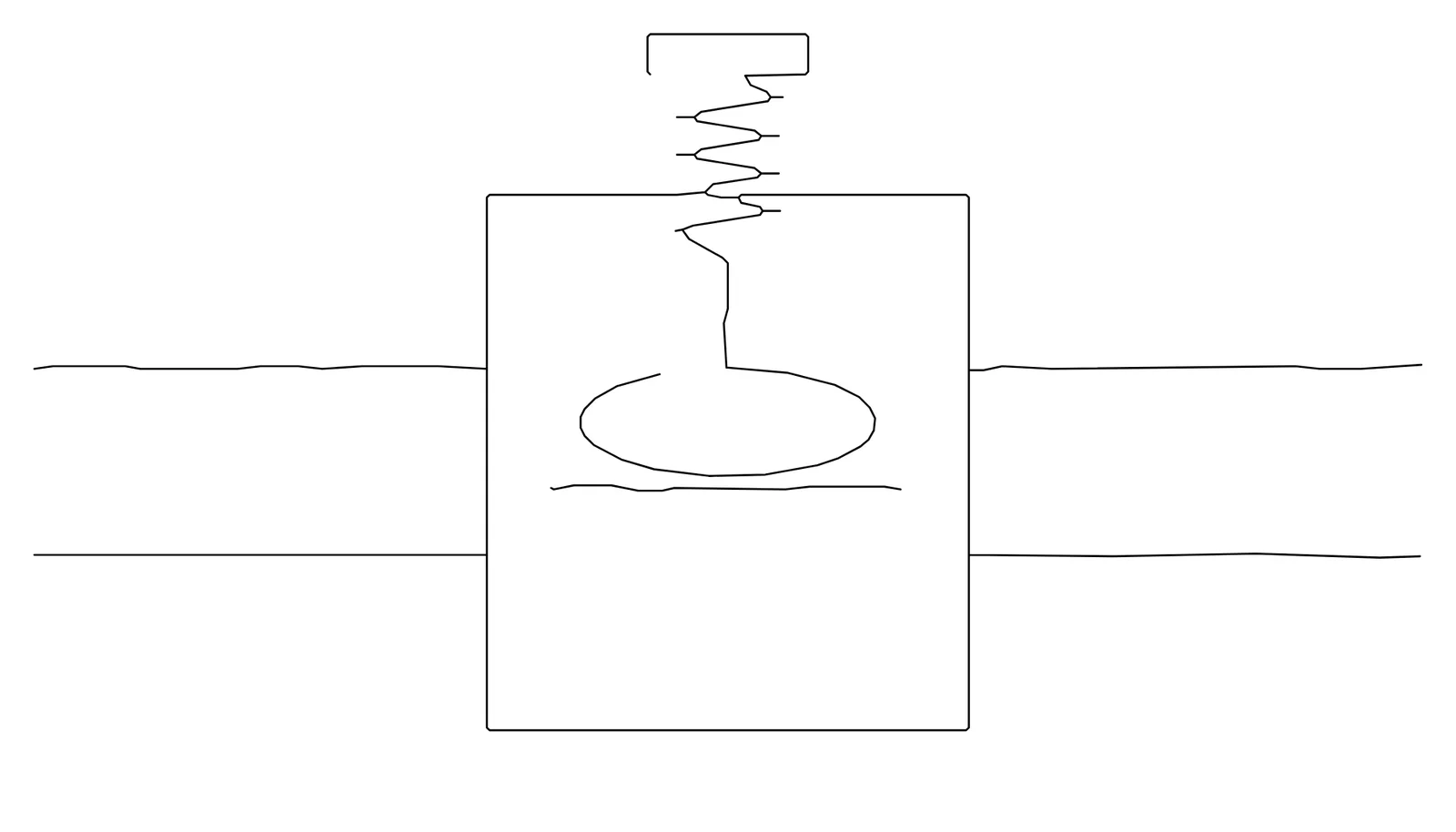
The same sketch after the eraser: the stray marks have been deleted
After: the stray marks deleted with the eraser.

Eraser and scissors

Erase or cut a segment of a traced path without touching the rest of the figure.

“Split strokes” and “Join”

Divide a path into pieces to handle separately, or rejoin broken lines.

“Simplify” slider

A slider sets how much to simplify the traced paths. The version history, with preview and restore, keeps every step.

The comparison

Clean up by hand, or clean up with a preview?

Today, by hand

  • You delete dimensions, texts and title block line by line.
  • You clean up each view of the model one at a time.
  • You do not know how much you removed until you check again.
  • To remove the housing, you redo the view.
  • You risk deleting a line that was needed.

With Inklaim

  • Dimensions, texts, title block, center lines and hatching removed in one pass.
  • Holes, fillets and fasteners removed with one level of detail.
  • The result tells you what was removed.
  • Hide a part only where needed.
  • See in color what disappears, before confirming.

The cleaned figures then go through the consistency check, which compares reference numerals and dimensions across the views of the whole matter.

The video

Watch simplification in the app

The video runs 5 minutes 19 seconds; simplifying figures, from 3D and from DXF, is the first of the five jobs shown.

Read the video transcript

This is Inklaim, the drawing office for European patent firms. It prepares the sheets for filing from what the firm already has: the client’s 3D model, the technical drawing, the claims.

Today, figures are the most hand-crafted part of a matter: hours spent redrawing views that already exist, office rules, similar but not identical, and one wrong numeral is enough for an objection.

Draftspersons told us the five jobs they most want to lighten. Let’s see them in the app.

One: simplifying the figures.

From the client’s 3D model, you choose the level of detail. With “Essential”, small holes, chamfers and fillets disappear, and so do threads. And screws and washers are removed on their own. Here is the same view: full on the left, essential on the right.

The same goes for the workshop drawing, as DXF or vector PDF. Dimensions, lettering, title block, centre lines and hatching disappear by themselves. Before confirming, you see in colour what will be removed, and how each view will look.

And what if the client’s drawing is full of identical objects, like these three hundred holes? Pick one, and “Select identical” finds every copy, even turned or mirrored. Check the selection, and delete them in one go. With AI, when it is on, just type it: “all the brackets along the rail”.

Two: sheets from the 3D model.

Upload the STEP file and choose the views, axonometric and exploded views included. For the section, choose the plane on a preview: the section line A-A appears by itself. And several views on one sheet, at the same scale; the exploded view gets its own sheet.

Here is a sheet generated this way. Already laid out, with four views at the same scale. The parts carry the numerals already used in the text of the application. And the sheet stays editable, in AutoCAD too.

And what if the client only has the object? Two or three photos will do. Inklaim lifts the object off the background and suggests the lines: one click keeps the real ones. With AI, when it is on, it tells real edges from reflections itself and names the parts. One drawing per photo, with the same numerals. And for turned parts, the photos give a 3D model, with the match measured on every photo.

Three: consistency between the views.

The Checks tab compares every figure in the matter, and the text. It finds the same numeral used for different parts, or the same part with different numerals. It flags figures that are cited but do not exist, or are out of order. It compares sizes across the views: here, one is ten per cent narrower. And from each warning, you go straight to what needs fixing.

Four: automatic numbering.

Move one figure, and all the others are renumbered. Before saving, Inklaim shows every reference in the text that will change. And you choose which ones to update. If you cancel, everything stays as it was.

“Renumber all” reassigns the numerals in the order in which the parts appear, following the firm’s own scheme too, for example even numerals only. Figures, description and claims change together, and it can all be undone straight away.

Five: the texts in the drawings.

All the wording in the figures is in a single table, with the translations alongside. Words are found and replaced across all the figures at once, and before confirming, you see every change, figure by figure. When AI is switched on, it translates them following the glossary and the claims.

And from the method claims, the flowchart is ready in a few seconds. With the steps already numbered, S100, S102, and so on. Without AI, straight from the text; then you edit it like any other drawing.

When the sheet is ready, you export it for filing. Choose the office, and sheet size, margins and labels follow its rules. China and Korea too, with the images for online filing. Then the language of the texts: there is only one drawing, and the numerals never change.

Matters, files and backups are stored in the European Union, and AI works in Europe. AI is optional, and whenever it is used, it is always disclosed. And no line is invented: each comes from the model, the drawing, the sketch or the photos.

We are proposing a four-week trial, with a group of three to six draftspersons and patent attorneys, on matters already filed and published, redone with Inklaim. Together, we measure the time saved and the quality of the sheets.

Let’s try it on real patents. If you are interested, let’s choose the three matters together and get started.
FAQ

Simplifying patent figures: common questions

Can Inklaim remove a part the invention needs?

You remove only what you decide. The level-of-detail sizes are adjustable, each part can be shown or hidden, and the preview shows in color what disappears. With the version history you can go back to an earlier version.

Can I import a DWG file?

Not directly: save the DWG as DXF from your CAD program and then import it. In the same way, native SolidWorks, Inventor or Creo files are first exported to STEP or IGES.

Does artificial intelligence simplify the geometry?

No. Simplification and 2D import are deterministic: Inklaim removes elements from the model or the drawing and never invents new ones. AI is optional: it works on texts and, with “Select with AI”, only says what to select.

What about the words a figure really needs?

You add the few permitted keywords in the editor. Inklaim flags text matter that is not indispensable, citing each office's rule, and turns it into a reference numeral with one click: see the page on texts in patent drawings.

The pilot

Try simplification on your clients' drawings

In the 4-week pilot, 3 to 6 people from your firm redo the sheets of 3 already published patents with Inklaim, and together we compare time and quality. We start after a non-disclosure agreement.

English Deutsch Español Français 日本語 한국어 中文